KasirPOS
iPhone POS App: A Guide to Choosing One for Warungs and Small Shops
How to choose an iPhone POS app for iPhone and iPad: works offline, BLE printers, a debt book, profit reports, and backups. Plus a 5-minute start.
An iPhone POS app worth using in a warung (a small neighborhood shop) or small store has to keep working without internet, print to a BLE (Bluetooth Low Energy) receipt printer, track stock and customer debt, and calculate profit, not just sales. You also need to be able to back up the data yourself. The table below helps you check all of this right on your iPhone.
Most lists of POS (point of sale) apps out there are written for Android users. But a few things work differently on iPhone and iPad, especially printers, backups, and how apps are installed. This guide is for those of you selling with an iPhone or iPad.
How POS apps differ on iPhone and Android
From a shop owner's point of view, the flow is similar: tap products, take the money, print a receipt. The difference is in the iOS system rules that decide which devices you can use.
- Receipt printers. iPhone and iPad cannot use just any Bluetooth printer. Printers with only classic Bluetooth generally cannot be used by apps; the safe choice is a BLE printer. The full explanation is in the guide to Bluetooth thermal printers for iPhone.
- Where you install apps. iPhone apps are installed from the App Store. Before downloading, you can read the app's privacy section and its in-app purchase information.
- Backups. Backup files on an iPhone are usually saved through the Files app, iCloud Drive, or AirDrop to a Mac. Make sure the POS app you choose can create files like this.
- Pairing with an iPad. Many shops start with an iPhone, then use an iPad at the counter because the screen is roomier.
That is why a list of Android POS apps cannot be used as your reference. When choosing an iOS POS app, there are a few things you need to check for yourself.
10 criteria for choosing an iPhone POS app
Use this table as a checklist. Most of it can be checked in one afternoon: download the app, add a few sample products, then try each point.
| Criterion | Why it matters | How to check |
|---|---|---|
| Works without internet | Signal often drops in markets, shophouses, or basements. The line at the counter should not stop with it. | Turn on Airplane Mode, then complete one transaction. |
| Works with BLE printers | Regular classic Bluetooth printers cannot connect to apps on the iPhone. | Look for BLE in the app description and the printer specs. Make sure there is a test print button. |
| Who owns the data | Sales, cost prices, and the debt list are business secrets. | Read the app privacy section on the App Store page and its privacy policy. |
| Free or paid | Monthly subscriptions add up. "Free" sometimes only covers basic features. | Check the in-app purchase information on the App Store page, then see which features are locked. |
| iPad support | At the counter, a big screen is faster to read and tap. | Install it on an iPad. See whether the layout uses the screen, not an enlarged iPhone version. |
| Barcode scanning | Shops with hundreds of packaged goods need a fast way to enter items. | Scan three items in a row. Does the camera have to be reopened every time? |
| Debt book | Kasbon (store credit / customer tabs) is easy to forget if it is only kept in your head. | Make a transaction that is underpaid. See whether the remainder is recorded under the customer's name. |
| Profit reports, not just sales | Big sales do not always mean profit. | Look for a cost price field and a profit and loss report, not just total sales. |
| Cashier accounts and permissions | Staff do not need to see cost prices or cancel transactions as they please. | Create a cashier account. Check whether its permissions can be limited and whether its name is recorded on transactions. |
| Backup and moving devices | Phones get lost, broken, or replaced. | Look for automatic backups, manual backups to a file, and a way to restore on a new device. |
Works without internet
An app that must be online will stall when the signal drops, often right when the shop is busy. An app that stores data on the device keeps working, but you have to back up regularly. The pros and cons of both are covered in the offline POS app article.
Free, subscription, or in-app purchases
There are three common models: fully free, free with locked features, and subscription. The second one surprises people most, for example when reports or the number of products are limited until you pay. Check this before you enter hundreds of products.
Correct profit reports
Profit can only be calculated if the app stores the cost price of every item. Without it, all you see is money coming in. If you are not used to reading profit figures yet, start with how to calculate your shop's profit, then look at this simple profit and loss statement example.
Debt, staff, and barcodes
These three often only start to matter after the shop has been running for a few months. Kasbon that is not recorded neatly is easily lost, so get into the habit of tracking customer debt from the start. If you have staff, also learn how to prevent cashier theft.
For shops with lots of packaged goods, see the tool options for scanning barcodes on iPhone and iPad, from the camera to a Bluetooth scanner.
Backup and moving devices
Ask one question: if this iPhone were lost tonight, what would be left tomorrow morning? You need a clear answer before you record real transactions. The practical steps are in the POS app data backup guide.
Test it before deciding
Do not move all your shop records to a new app right away. Set aside a quiet afternoon for this trial:
- Enter five to ten of your best-selling products, including their cost prices.
- Turn on Airplane Mode, then ring up three practice transactions: one paid exactly, one with change, one underpaid.
- Print a receipt on your printer, or share the receipt as an image if you do not have a printer yet.
- Open that day's report. Compare sales and profit with your own calculation.
- Make a backup, then make sure you can find the backup file in the Files app or iCloud Drive.
If all five steps go smoothly, the app is good enough for real use. If something gets stuck, better to find out now than when the shop is busy.
What kind of business it suits
A POS app on an iPhone pays off most in businesses with a single counter: warungs, toko kelontong (small grocery stores), staple-food shops, food stalls, small cafés, and retail shops.
- Warungs and grocery stores. Need a fast register, wholesale and retail pricing for bulk buyers, stock, and a debt book.
- Food stalls and small cafés. Need per-table orders paid later and split bills. These are covered in the café POS app article.
- Retail shops with many items. Need barcode scanning and a way to add products in bulk, for example importing products from Excel into a POS app.
If you are thinking of buying a dedicated cash register, first compare the cost and hassle in the article cash register vs POS app for small shops. For a fixed counter, an iPad POS app is often more comfortable than an iPhone.
How KasirPOS meets these criteria
KasirPOS is a POS and inventory app for iPhone and iPad running iOS or iPadOS 17 and later. All of its features are free: no ads, no subscription, and no in-app purchases. Here is how it answers the criteria above.
- Offline, no account. No sign-up needed. Transactions run without internet and data is stored on your device. Its privacy label on the App Store: "Data Not Collected".
- Printers. Supports BLE thermal printers with ESC/POS commands, 58 or 80 mm paper. Connect the printer from More › Printer & Cash Drawer, then run Test Print. Without a printer, receipts can be shared as an image or PDF, including as digital receipts on WhatsApp.
- iPad. Products and the cart appear side by side on one screen. With a physical keyboard there are shortcuts, for example Cmd+F to search products and Cmd+Return to pay.
- Barcode scanning. The camera keeps scanning until you close it. A Bluetooth or USB scanner works right away in the product search field.
- Debt book. If a customer underpays, the remainder automatically goes into the Debt Book under the customer's name. Installments can be taken at any time.
- Reports. The Reports tab shows sales, net profit, expenses, and best-selling products. There is a profit and loss report with margin per product, and reports can be exported to Excel.
- Cashiers and permissions. Each cashier logs in with their own PIN and their name is recorded on every transaction. The owner sets permissions, for example who may see cost and profit or cancel transactions.
- Backups. Automatic daily backups (last 7 days) in the Files app, plus manual backups to a
.kasirbackupfile that you can save in iCloud Drive or send via AirDrop.
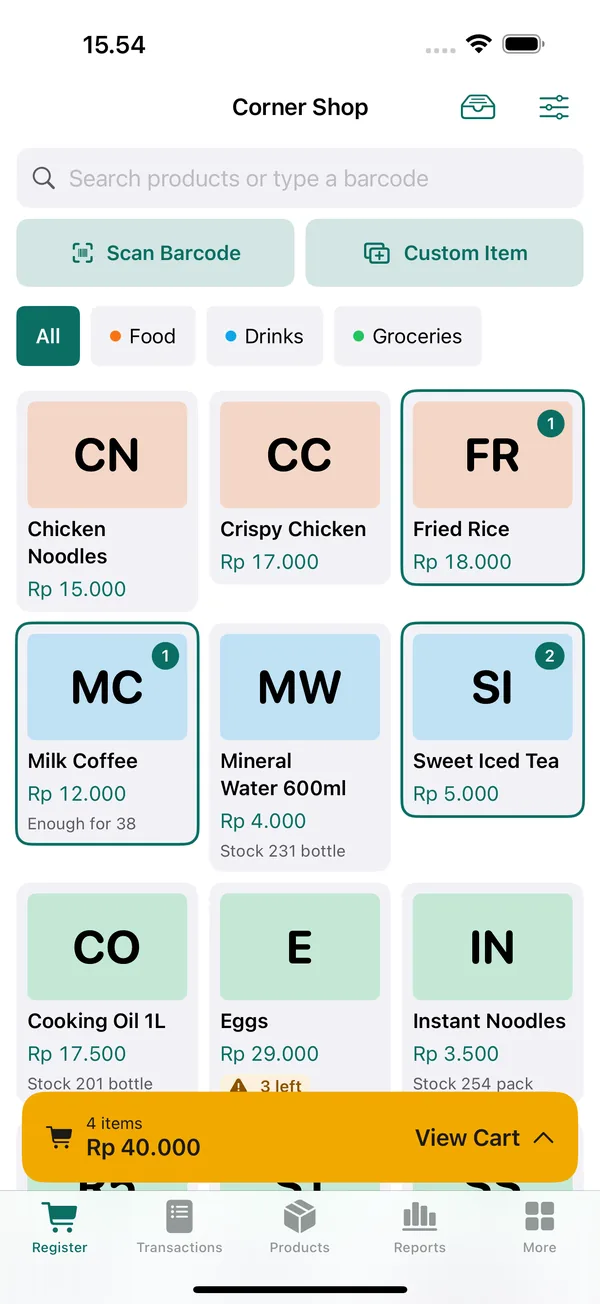
There is also automatic wholesale pricing, box or pack units with their own barcodes, product variants, split payments (for example part cash and part QRIS, Indonesia's standard QR payment), stock takes, purchases from suppliers, member points, and sending your catalog to WhatsApp.
The latest version also adds options and toppings with extra charges, debt reminders via WhatsApp, opening and closing the register with a cash drawer count, a widget for today's sales, low-stock reminders, and optional iCloud sync to use the same data on iPhone and iPad.
Get started in 5 minutes
You do not need to set up all your products first. Start with sample products, learn the flow, then add your real items.
- Download KasirPOS: POS and Inventory from the App Store on your iPhone or iPad.
- Enter your shop name. This name is printed on receipts.
- Turn on Add sample products for practice, then tap Save & Open Register.
- Try one transaction: tap a few products, tap Pay, choose Cash, then use the Exact Amount button or a quick amount. Change is calculated automatically.
- If you already have a BLE printer, open More › Printer & Cash Drawer, tap Find Bluetooth Printers, choose the printer, then tap Test Print.
- Delete the practice products in Products › Add › Delete Sample Data.
- Add your real products one by one from the Products tab, or all at once with Products › Add › Bulk Import (Excel/CSV) using the Excel template.
- If you have staff, create accounts in More › Users, Cashiers & PIN and set their permissions.
Tip: After your first day of selling, make a manual backup in More › Backup & Restore › Back Up Now and save the file off your iPhone, for example in iCloud Drive.
If a step gets stuck, open More › Help & Guide in the app, or read the selling guide on the support page.
Limitations you should know
No app suits every business. Here is what KasirPOS does not do, so you can decide with confidence.
- iPhone and iPad only. There is no Android version and no web version.
- No online dashboard or multi-branch. You cannot monitor sales from a browser at home, and there is no managing several outlets at once.
- Does not process payments. KasirPOS only records that the customer paid by QRIS, transfer, or card. The money goes to your shop's own QRIS or bank account. How to keep those records tidy is in the article on recording QRIS payments.
- The printer must be BLE. Printers with only classic Bluetooth cannot connect to iPhone and iPad. This is an iOS limitation. Not every printer brand has been tested, so always run Test Print.
iCloud sync is optional and off by default. When turned on, the same data can be used on iPhone and iPad with the same Apple ID, and it is stored in your own iCloud, not on our servers. Keep making regular backups.
If your business needs remote monitoring, many branches, or staff using Android phones, a cloud-based app may be a better fit. If you need a fast, private, free iPhone POS app for one shop, an app that stores data on the device is a sensible choice.
Frequently asked questions
Is there a free POS app for iPhone?
Yes. KasirPOS can be downloaded for free from the App Store for iPhone and iPad with iOS or iPadOS 17 and later, and all of its features are free: no ads, no subscription, and no in-app purchases. For other apps, check the in-app purchase information on the App Store page before downloading and entering your data.
Can an iPhone POS app be used without internet?
Yes, as long as the app stores data on the device. KasirPOS keeps working without internet for transactions, stock, reports, and receipt printing over a Bluetooth printer; internet is needed for things like sending receipts or the catalog on WhatsApp. It is easy to check: turn on Airplane Mode on your iPhone, then try one transaction from start to finish.
Which printer can I use for a register on iPhone?
Choose a thermal printer that supports Bluetooth Low Energy (BLE) and ESC/POS commands, with 58 or 80 mm paper. Printers with only classic Bluetooth cannot connect to apps on iPhone and iPad because of an iOS limitation. Once connected, run a test print to make sure the output looks right.
Can an iPhone POS app also be used on iPad?
KasirPOS can be installed on both iPhone and iPad with iOS or iPadOS 17 and later. On iPad, the product list and cart appear side by side, and a physical keyboard can be used with shortcuts. To move data from iPhone to iPad, make a backup on the iPhone and restore it on the iPad; remember, restoring replaces all data on the destination device.
Is my sales data sent to a server?
Not to KasirPOS servers. Data is stored on your iPhone or iPad, and the app's privacy label on the App Store is "Data Not Collected". Because the data lives on the device, you are responsible for keeping backups, so make manual backups regularly and save the files somewhere else, for example iCloud Drive.