KasirPOS
Bluetooth Thermal Printer for iPhone: How to Choose and Connect One
Bluetooth thermal printer not showing up on your iPhone? Learn classic Bluetooth vs BLE, what to check before buying, 58 vs 80 mm, and how to fix it.
The key to choosing a Bluetooth thermal printer for iPhone is BLE (Bluetooth Low Energy). Many receipt printers on the market only use classic Bluetooth, and iOS generally does not let POS apps use printers like that. As a result, a printer that works fine with an Android phone may not show up at all on an iPhone or iPad, so check for BLE in the specs before you buy.
Shop owners run into this all the time when looking for an iPhone receipt printer or an iPad receipt printer. The good news is that it is easy to check, and you can do it before you spend any money.
Why your Bluetooth printer is not detected on iPhone
Bluetooth has two different "lanes". A receipt printer can use one of them, or both.
- Classic Bluetooth (SPP). SPP (Serial Port Profile) is the older way of sending data over Bluetooth, as if through a cable. Android lets POS apps use it directly, which is why so many printers of this type are sold.
- BLE (Bluetooth Low Energy). A more power-efficient kind of Bluetooth. On iPhone and iPad, apps are allowed to find BLE devices and send data to them directly.
The problem lies in iOS rules. For classic Bluetooth accessories, iOS only lets apps talk to accessories registered in Apple's MFi (Made for iPhone) program. Most ordinary classic Bluetooth printers are not registered, so POS apps on iPhone cannot use them.
This is a limit of iOS itself, not a bug in one particular app. No matter how many times you restart it, a printer that only has classic Bluetooth still cannot be used by a POS app on iPhone.
Do not go by the Bluetooth settings menu
A classic printer may show up in the iPhone's Settings › Bluetooth, yet still be unable to receive receipts from the app. On the other hand, a BLE printer does not need to be paired in that menu. BLE printers are found and connected from inside the POS app.
How to check a Bluetooth thermal printer for iPhone before buying
- Look for BLE in the specs. The words to look for: "BLE", "Bluetooth Low Energy", or "Bluetooth 4.0 LE". "Bluetooth 4.0" on its own is no guarantee, because the version number does not always mean the printer uses BLE.
- Look for "supports iOS". It is a good sign. But ask whether the printer works with other POS apps, not just the manufacturer's own app.
- Make sure it supports ESC/POS commands. ESC/POS is the command "language" used by most receipt printers. POS apps send receipts in this language.
- Dual-mode printers are more flexible. Some printers have both classic Bluetooth and BLE. A printer like this works with Android phones over classic Bluetooth and with iPhone over BLE.
- Ask the seller directly. Send a question such as: "Does this printer support BLE, and does it work with POS apps on iPhone, not just the printer's own app?" Keep the answer in case it turns out not to work.
Important: A printer that "has Bluetooth" and works fine with Android phones does not necessarily work with iPhone. What matters is BLE, not just Bluetooth.
58 mm or 80 mm printer?
This number is the width of the receipt paper. Both work with iPhone as long as the printer is BLE and supports ESC/POS.
| Point | 58 mm | 80 mm |
|---|---|---|
| Printer size | More compact, easy to move or carry | Larger, best left on the checkout counter |
| Receipt content | Fine for short item names; long names wrap to the next line more often | Roomier; long item names and details look neater |
| Upfront cost | Usually cheaper | Usually more expensive |
| Good for | Warungs (small neighborhood shops), food stalls, market stalls, mobile sellers | Shops with many items per sale, cafés, busy retail shops |
Before you decide, also check whether paper rolls in that size are easy to buy near your shop. Once the printer arrives, set the same paper width in your POS app so receipts are not cut off.
How to connect a printer to iPhone or iPad in KasirPOS
KasirPOS is built for BLE thermal printers with ESC/POS commands and 58 or 80 mm paper. The steps are the same on iPhone and iPad.
- Turn on the printer and make sure paper is loaded.
- Turn on Bluetooth on the iPhone or iPad.
- Open More › Printer & Cash Drawer, then tap Find Bluetooth Printers.
- Choose your printer from the list that appears.
- Tap Test Print and check the result.
- Set the paper width (58 or 80 mm) in More › Receipt Layout. In the same menu you can add a logo, address, and footer.
Connect from inside the app, not from the Bluetooth menu in iPhone Settings. We have not tried every printer brand, so the Test Print result is what counts. A summary of these steps is also on the printer support page.
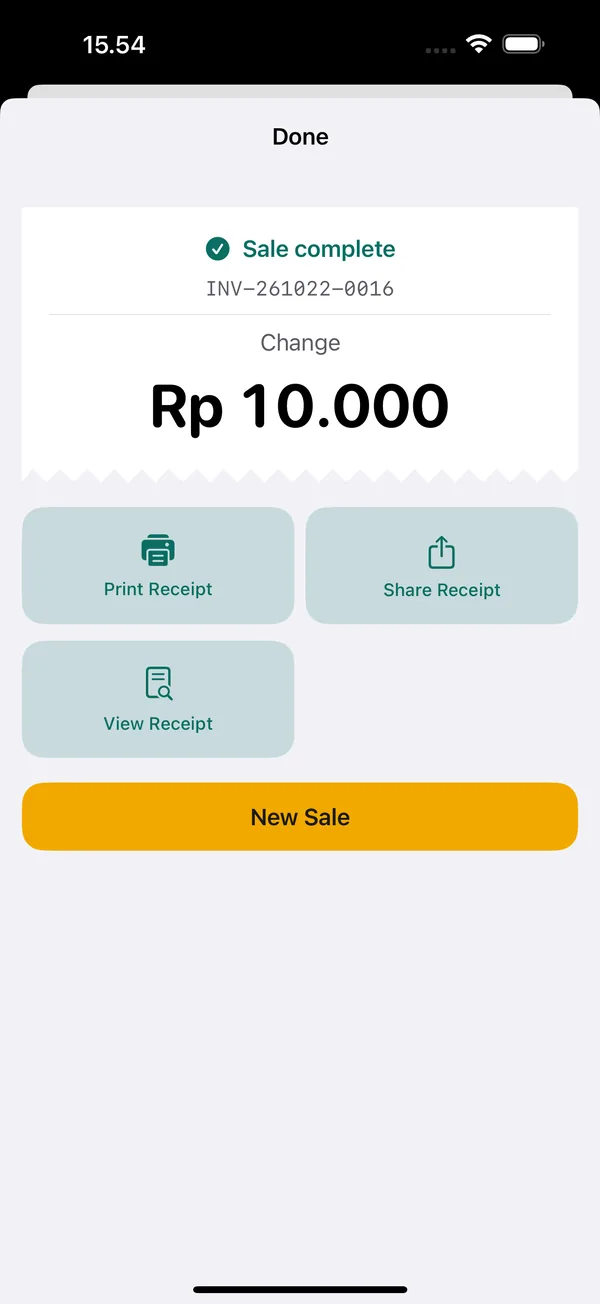
Once connected, a Print Receipt button is available on the "Sale complete" screen. Older receipts can be printed again from the Transactions tab with Reprint Receipt. The steps are the same if you use an iPad POS app at the checkout counter.
Printer not showing up or receipts garbled: how to fix it
The printer does not appear when searching
- Make sure the printer is on and its Bluetooth mode is active, then bring it closer to the iPhone.
- The printer may still be connected to another phone or tablet. Many printers only accept one connection. Turn off Bluetooth on that other device or disconnect it from its app, then search again.
- Turn the printer off, wait a few seconds, turn it back on, then tap Find Bluetooth Printers.
- If the printer was ever paired in Settings › Bluetooth, tap the (i) icon next to its name, choose Forget This Device, then search again from the app.
- If it still does not appear, the printer most likely only has classic Bluetooth. Check its specs again.
The message "Bluetooth is off or not allowed" appears
Turn on Bluetooth on the iPhone. Then open Settings › Kasir Pos and allow Bluetooth access. The app needs this permission to look for nearby printers.
Receipts are garbled or the characters look wrong
- Text cut off or too narrow: the paper width in the app does not match the printer yet. Set it in More › Receipt Layout.
- Wrong letters or symbols: turn on Print as image in the printer settings, More › Printer & Cash Drawer.
- Paper comes out blank: thermal paper only prints on one side. Flip the paper roll around.
- Faint printing: charge the printer battery and make sure you are using thermal paper, not plain paper.
No printer yet, and a note on cash drawers
You do not need a printer to start selling. The "Sale complete" screen has a Share Receipt button. From the Transactions tab you can also choose Share Receipt (Image), Share Receipt (PDF), or send it to WhatsApp if the customer's number is saved.
If your shop has an office printer that supports AirPrint, open View Receipt and print from the preview. Sending receipts without paper is covered in the digital receipts via WhatsApp article.
Cash drawer through the printer
An automatic cash drawer is usually connected by cable to the receipt printer, not to the iPhone, and the printer passes on the open-drawer command. In KasirPOS, a drawer connected to the printer can be opened with More › Open Cash Drawer. When buying, make sure the printer has a port for a cash drawer.
The full list of hardware that works with KasirPOS is in the supported devices section. If you are still choosing an app, read the iPhone POS app guide first.
Frequently asked questions
Why is my Bluetooth printer not detected on iPhone?
Usually because the printer only uses classic Bluetooth (SPP). iOS only lets apps talk to classic Bluetooth accessories registered in Apple's MFi program, and most ordinary receipt printers are not registered. Choose a printer that supports BLE (Bluetooth Low Energy), then connect it from inside the POS app, not from iPhone Settings.
Which thermal printers work with iPhone?
Thermal printers that support Bluetooth Low Energy (BLE) and ESC/POS commands, with 58 or 80 mm paper. Check the specs: look for BLE, Bluetooth Low Energy, or Bluetooth 4.0 LE. Not every brand has been tested, so always run a test print once the printer is connected to your iPhone.
Can an Android receipt printer be used with iPhone?
Only if that printer also supports BLE. Dual-mode printers have classic Bluetooth for Android and BLE for iPhone, so they work with both. A printer that only has classic Bluetooth cannot be used by POS apps on iPhone or iPad, even if it works fine with Android phones.
Is a 58mm or 80mm printer better for a small shop?
For warungs and food stalls, a 58 mm printer is usually enough: it is more compact and cheaper upfront. An 80 mm printer suits shops where a single sale has many items or item names are long. Both work with iPhone as long as the printer is BLE and supports ESC/POS.
Can I print receipts from iPhone without a thermal printer?
Yes. In KasirPOS, open View Receipt and print from the preview to a printer that supports AirPrint. Until you buy a BLE thermal printer, you can also share receipts as an image or PDF, or send them to the customer's WhatsApp.