KasirPOS
iPad POS App: How to Set Up an iPad as Your Shop's Cash Register
A guide to using an iPad POS app at the shop counter: why a big screen is faster, an equipment checklist, setup steps, table orders, and split bills.
An iPad POS app is a good fit for a shop with a fixed checkout counter. The screen is wide enough to show the product list and the cart at the same time, and you can pair the iPad with a keyboard, a barcode scanner, and a Bluetooth receipt printer. What you need: an iPad that can run iPadOS 17 or later, a sturdy stand, and a POS app built for the iPad screen.
Many shops start with an iPhone, then move the register to an iPad once the line at the counter grows. Here is why an iPad works well as a shop register, what equipment to get ready, and how to set it up until it is ready to serve customers.
Why an iPad works well as a counter register
A tablet POS app is basically the same as the phone version. The difference is in how the cashier works in front of a bigger screen.
Products and cart visible together
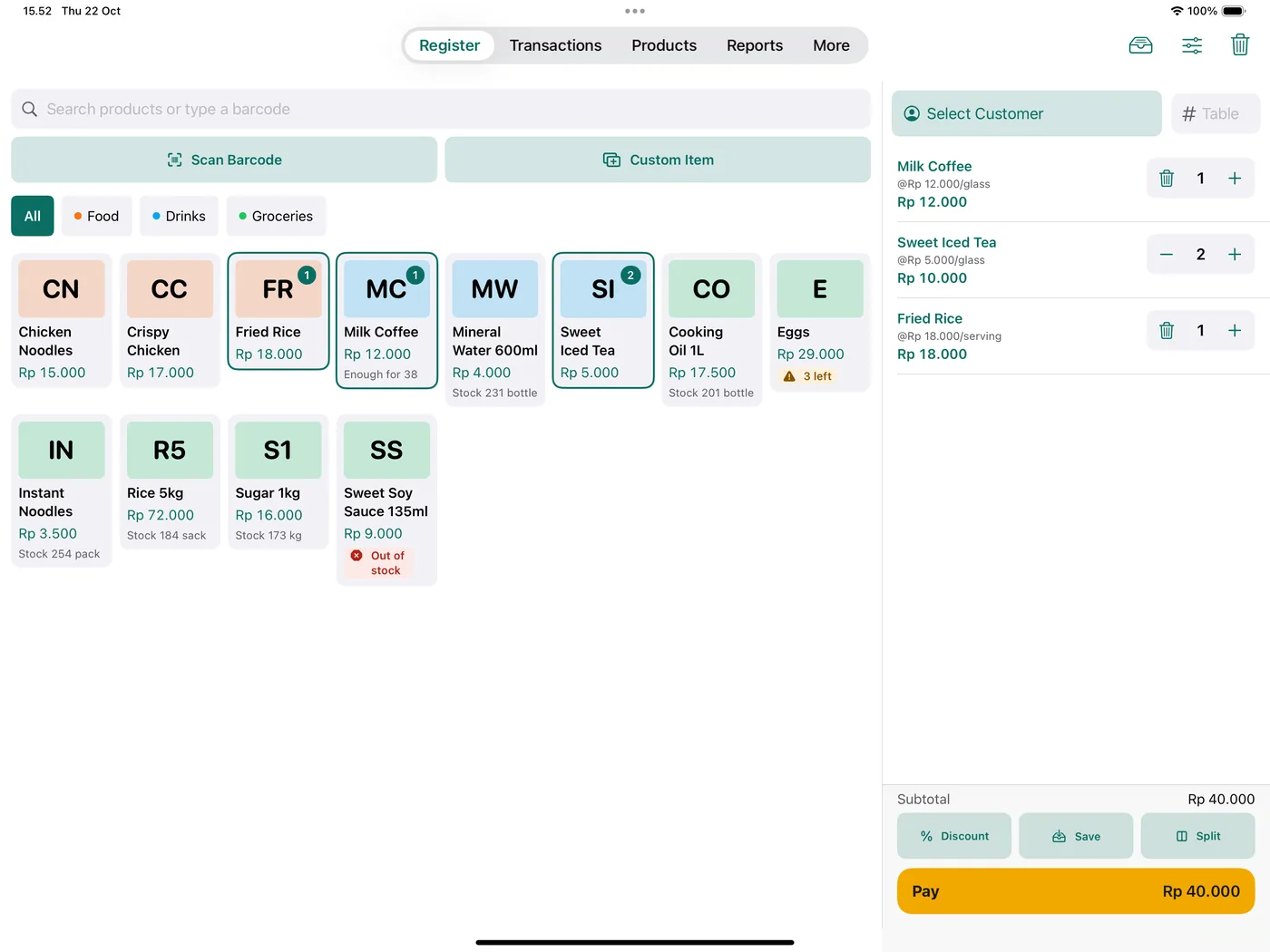
On a phone screen, the cashier often switches back and forth between the product list and the cart. On an iPad, both can sit side by side: products on the left, the cart and pay button on the right. The cashier checks the order while adding more items, without jumping between screens.
Roomier buttons, fewer mis-taps
When it gets busy, fingers move fast. Bigger product buttons mean fewer taps on the wrong item next door. Customers can also follow the total more easily if the screen is turned toward them.
Works with a keyboard and scanner
A physical keyboard makes searching for products and typing quantities faster. With an app that has keyboard shortcuts, the cashier can work almost without touching the screen. A Bluetooth or USB barcode scanner can be used at the same time.
It stays at the counter
An iPhone usually goes wherever its owner goes. An iPad on a stand stays at the counter, so staff can keep serving customers even when the owner is out.
iPad POS equipment checklist
You do not have to buy everything on day one. Start with the iPad and a stand, then add other gear as your shop needs it.
- iPad. An iPad that can run iPadOS 17 or later. Check in Settings › General › Software Update.
- Stand or holder. Pick one that is sturdy, does not slide around, and holds the iPad in landscape. A swivel stand makes it easy for customers to see the total.
- BLE receipt printer. A Bluetooth Low Energy (BLE) thermal printer that supports ESC/POS commands, with 58 or 80 mm paper. Read the guide to Bluetooth thermal printers for iPhone and iPad before you buy.
- Barcode scanner (optional). The iPad camera already works, but a Bluetooth or USB scanner is faster for shops with lots of packaged goods.
- Cash drawer (optional). Choose a drawer that connects to the receipt printer, not to the iPad. The app sends the open-drawer command through the printer.
- Physical keyboard (optional). Useful if the cashier often searches for products by typing their names.
- Charger and a long enough cable. An iPad that is on all day with a bright screen drains its battery quickly. Make sure there is a power outlet near the counter.
Important: A printer that works fine with an Android phone will not necessarily work with an iPad. Make sure the specs say BLE (Bluetooth Low Energy), not just "Bluetooth". A summary of supported devices is in the KasirPOS devices section.
Setting up an iPad POS app step by step
The example below uses KasirPOS, a free POS and inventory app for iPhone and iPad. How to choose an app is covered in the iPhone POS app guide, and the same criteria apply to the iPad.
- Update iPadOS. Make sure the iPad is on iPadOS 17 or later.
- Install the app. Download KasirPOS from the App Store. No account sign-up and no internet are needed to sell.
- Enter your shop details. Fill in the shop name, turn on "Add sample products for practice" if you want to try things first, then tap "Save & Open Register".
- Add products. Add them one by one from the Products tab, or all at once with Products › Add › Bulk Import (Excel/CSV) using the Excel template.
- Connect the printer. Open More › Printer & Cash Drawer, tap Find Bluetooth Printers, choose the printer, then tap Test Print. Connect from the app, not from the Bluetooth menu in the iPad's Settings.
- Set up the scanner. A Bluetooth or USB scanner works right away in the product search field. Details are in the barcode scanning on iPhone and iPad guide.
- Create cashier accounts. In More › Users, Cashiers & PIN, add cashiers with their own PINs and set their permissions, for example no permission to see cost and profit.
- Lock it when you step away. Turn on the Face ID or Touch ID lock, then use More › Lock / Switch User when cashiers change over.
If your shop data is already on an iPhone, you do not need to enter products from scratch. See the section on the iPhone as a backup below.
Keyboard shortcuts on iPad
If the iPad has a physical keyboard, KasirPOS offers these shortcuts:
Cmd+F: search productsCmd+B: scan barcodeCmd+M: add a custom itemCmd+Return: pay
Table orders and split bills on iPad
At small food stalls and cafés, the iPad at the counter is often used for orders that get paid later. In KasirPOS there are two buttons under the cart:
- Save. Saves the order, for example by table number, to be paid later (open bill). The cashier can serve the next customer right away.
- Split. Moves some items to a new bill (split bill), for example when people at one table want to pay separately.
Payments can also be combined, for example part cash and part QRIS (Indonesia's standard QR payment code). KasirPOS only records the payment method; the money still goes to your shop's own QRIS or bank account. The full flow for food and drink businesses is in the café POS app article.
For menu items with choices such as spice level, size, or toppings, create option groups in Products › Add › Options & Toppings, then attach them in Edit Product. When the product is tapped, the cashier picks the options, and any extra charge is added to the price and printed on the receipt.
An iPhone as a backup register
An iPad can run out of battery, get dropped, or be in for repair. That is why it is a good idea to have the same POS app installed on the owner's iPhone as a backup.
KasirPOS has optional iCloud sync, which you turn on in More › Backup & Restore on the main device that already holds your data. On the second device with the same Apple ID, install KasirPOS and choose "Get data from iCloud" on the welcome screen. The data is stored in your own iCloud, not on our servers.
Sync does not replace backups. Keep making manual backups regularly and store the files somewhere else.
The full guide to saving and moving your data is in the POS app data backup article.
Daily habits for a smooth iPad register
- Set the screen's auto-lock. In Settings › Display & Brightness › Auto-Lock, choose a longer time so the screen does not turn off while you serve. Still lock the POS app when you leave the counter.
- Limit the iPad to the POS app. Guided Access in Settings › Accessibility can lock the iPad to a single app, so staff cannot open other apps.
- Test the printer before opening. One test print in the morning beats a jammed printer when the line is long. Keep a spare paper roll in the drawer.
- Charge it every night, or keep the iPad plugged in while the shop is open.
- Back up before closing. Daily automatic backups are stored on the iPad itself. A backup file saved off the iPad is much safer if the iPad breaks or gets lost.
Frequently asked questions
Can an iPad be used as a cash register?
Yes. With an iPad POS app, or iPad POS system, the iPad works like a cash register: it records sales, calculates change, prints receipts on a Bluetooth BLE printer, and opens a cash drawer connected to the printer. Add a sturdy stand, a charger, and a barcode scanner if needed so it is comfortable to use all day at the counter.
Which iPad can I use for a POS app?
For KasirPOS, use an iPad that can run iPadOS 17 or later. To check, open Settings › General › Software Update on your iPad and look at the installed or available version. Screen size does not decide whether it works, but a bigger screen gives you more room at the counter.
Can a Bluetooth printer be used with an iPad?
Yes, as long as the printer supports Bluetooth Low Energy (BLE) and ESC/POS commands. Printers with only classic Bluetooth cannot be used by apps on the iPad because of an iPadOS limitation. Connect the printer from inside the POS app, not from the Bluetooth menu in Settings, then run a test print.
Can an iPad POS app be used together with an iPhone?
Yes, KasirPOS can be installed on both an iPad and an iPhone. The most basic way to move data is to make a backup on one device, then restore it on the other. Restoring replaces all data on the destination device, so do it while that device is still empty or when you really want its data replaced.
Does an iPad register need internet?
For KasirPOS, no. Transactions, stock, reports, and receipt printing over a Bluetooth printer work without internet, so the iPad keeps serving customers when the shop's Wi-Fi is down. Internet is needed for things like sending receipts or the product catalog to customers on WhatsApp.