KasirPOS
Scan Barcodes on iPhone and iPad at the Register: Camera, Bluetooth, or USB
How to scan barcodes on iPhone and iPad at your shop register: use the camera, a Bluetooth scanner, or a USB scanner. Plus how to label items without barcodes.
There are three ways to scan barcodes on iPhone and iPad at the register: the built-in camera, a Bluetooth barcode scanner, or a USB scanner through an adapter. The camera is enough to get started and costs nothing extra. A Bluetooth or USB scanner is faster for shops with lots of packaged goods and long lines.
All three work in the same POS app. What sets them apart is speed, cost, and how you set them up on an iPhone or iPad.
Three ways to scan barcodes on iPhone and iPad
| Method | Extra hardware | Good for | Keep in mind |
|---|---|---|---|
| iPhone or iPad camera | No | Warungs (small neighborhood shops), new shops, entering new products | Needs enough light; items are held up to the camera one at a time |
| Bluetooth scanner (keyboard mode) | Yes | Checkout counters with an iPhone or iPad, busy shops | Needs charging; the on-screen keyboard usually does not appear while the scanner is connected |
| Wired USB scanner | Yes, plus an adapter | A fixed checkout counter with an iPad | Needs an adapter that matches the device's port (USB-C or Lightning); the cable limits movement |
If you are just starting out, use the camera first. Once you notice the line slowing down because of scanning, then consider a separate scanner.
Option 1: scan barcodes with the iPhone or iPad camera
In a POS app, the camera works like a scanner. The difference is that you bring the item to the camera, not the other way round.
Watch for one thing when choosing an app: does the camera keep scanning, or do you have to reopen it for every item? If you have to reopen it, a ten-item purchase means opening the camera ten times.
Tips for faster barcode reading
- Enough light. Barcodes in dim places take longer to read. Turn on the light above the checkout counter.
- Get the distance right. Too close makes the image blurry, too far makes the barcode lines too small. Start at about a hand span away, then move slowly closer or farther.
- Avoid glare. Shiny plastic packaging reflects the lights. Tilt the item slightly.
- Flatten the barcode. Barcodes on crumpled or curved packaging are harder to read. Pull the packaging a little so it lies flat.
- Wipe the camera lens. Fingerprint smudges on the lens make the image hazy.
Option 2: a Bluetooth barcode scanner on iPhone and iPad
Most Bluetooth scanners have a keyboard mode, often called HID (Human Interface Device) mode. In this mode, the iPhone treats the scanner as a keyboard. Each time a barcode is scanned, the scanner "types" the barcode number, usually followed by the Enter key.
- Set the scanner to keyboard or HID mode. This is usually done by scanning a setup barcode from the scanner's manual.
- Pair the scanner in Settings › Bluetooth on the iPhone or iPad, just like pairing a keyboard.
- Open the POS app, tap the product search field, then scan an item.
Note the difference from printers. A keyboard-mode scanner is paired in iPhone Settings, while a BLE receipt printer is connected from inside the app. Printers are covered in the Bluetooth thermal printer for iPhone article.
Tip: While a keyboard-mode Bluetooth scanner is connected, the on-screen keyboard on the iPhone or iPad usually does not appear, because iOS assumes a physical keyboard is attached. If you need to type a product name, turn off the scanner or disconnect it for a moment.
What to ask before buying a scanner
- Keyboard/HID mode. Scanners that only have other modes, such as serial mode, generally cannot be used directly with an iPhone or iPad.
- Works with iOS. Ask whether the scanner has been used with an iPhone or iPad, not just with a computer or Android phone.
- Barcode type. A 1D scanner reads the line barcodes found on packaging. A 2D scanner can also read QR codes. For packaged goods in a small shop, a 1D scanner is usually enough.
- Battery and charging. Ask how it charges and keep the cable at the checkout counter.
Option 3: a USB barcode scanner on iPad and iPhone
A wired USB scanner also works as a keyboard. There is no Bluetooth pairing; you just plug it in. What you need is an adapter that matches your device's port.
- Devices with a USB-C port: use a USB-C to USB-A adapter, or a scanner whose cable is already USB-C.
- Devices with a Lightning port: use a Lightning to USB adapter, often called the camera adapter.
Some scanners need more power than an iPhone or iPad port can supply. If you see a message saying the accessory needs too much power, use an adapter with a charging port. An adapter like this also helps because the iPad can keep charging while the shop is open.
A USB scanner is the best fit for an iPad POS app at a fixed checkout counter, because the cable does not need to move around.
POS app with barcode scanning: how it works in KasirPOS
KasirPOS is a free POS and inventory app for iPhone and iPad. All three methods above work without complicated setup.
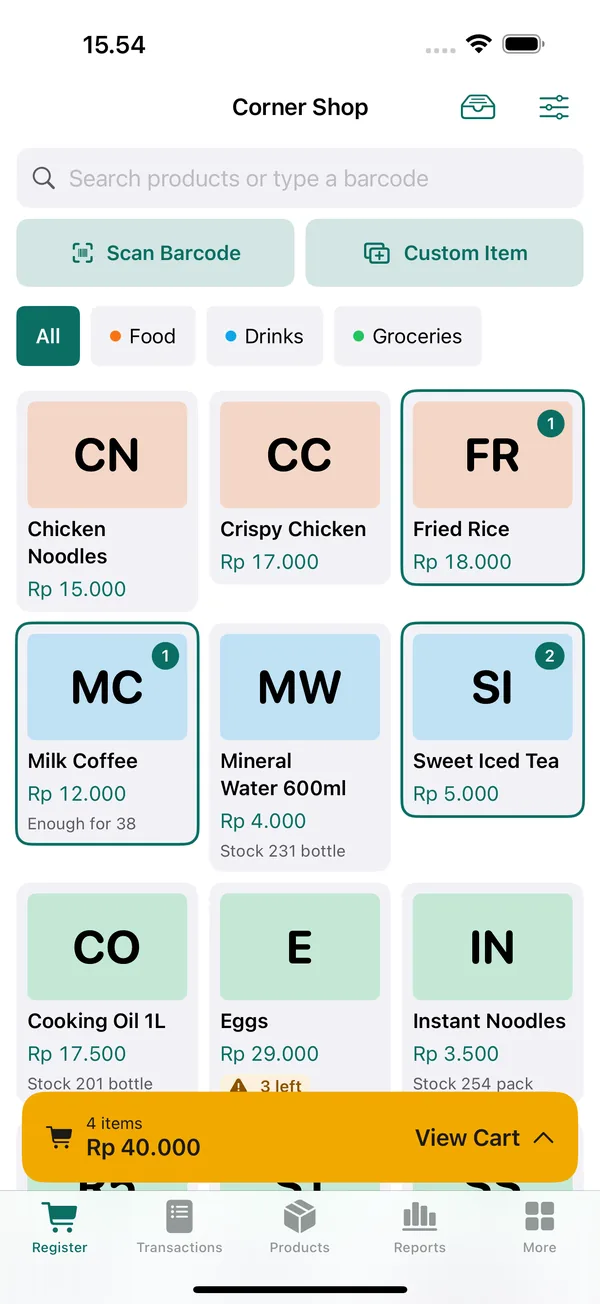
- Camera. Tap Scan Barcode on the Register screen. The camera keeps scanning until you close it, so you do not have to reopen it for each item. On an iPad with a physical keyboard, press
Cmd+B. - Bluetooth or USB scanner. Tap the product search field on the Register screen, then scan. The scanner works in that field right away.
- Scanner settings. There is a dedicated menu in More › Barcode Scanner.
- Product barcodes. When adding or editing a product in the Products tab, fill in the barcode field by typing or scanning it.
Other things to look for in an app, such as printers, profit reports, and backups, are covered in the iPhone POS app guide.
Items without barcodes, and carton barcodes
Items that have no barcode
Fried snacks, vegetables, bulk goods, or homemade products usually have no barcode. You have two options: tap the product directly in the register grid, or create your own barcode and stick the label on the item or the shelf.
In KasirPOS, first give the product a barcode in the product form; if it has no code of its own, the app can generate a number for it. Then create and print the labels with Products › Add › Print Barcode Labels or More › Print Barcode Labels. For a single product, open it in the Products tab and choose Print Barcode Labels.
Carton barcodes and piece barcodes
Many goods have two barcodes: one on the single unit (piece) and one on the carton or pack. If the carton is recorded as a separate product, the stock does not line up, because a carton sold does not reduce the piece stock.
In KasirPOS, add the carton or pack as an extra unit on the same product. Each unit has its own price and barcode, so scanning the carton barcode puts the carton unit straight into the cart. Setting prices per unit is covered in the wholesale and retail pricing article.
Entering barcodes for many products at once
The Excel import template in Products › Add › Bulk Import has a Barcode column. A USB scanner plugged into a laptop can also "type" barcodes straight into Excel cells, so you do not have to copy numbers one by one. The full steps are in the import products from Excel into your POS app guide.
Frequently asked questions
How do I scan barcodes on iPhone at the register?
Open a POS app with a scan feature, tap the scan button, then hold the barcode up to the iPhone camera in good light, about a hand span away. In KasirPOS, tap Scan Barcode on the Register screen; the camera keeps scanning until you close it, so you can scan several items in a row without reopening the camera.
Can a Bluetooth barcode scanner be used with iPhone?
Yes, if the scanner supports keyboard or HID mode. Pair the scanner in Settings › Bluetooth on the iPhone like a keyboard, then tap the product search field in the POS app and start scanning. Scanners that only have serial mode generally cannot be used directly with an iPhone or iPad.
Why doesn't the iPhone keyboard appear after connecting a barcode scanner?
Because iOS treats a Bluetooth scanner in keyboard mode as a physical keyboard, so the on-screen keyboard is usually hidden. This is normal. If you need to type a product name or an amount of money, turn off the scanner or disconnect its Bluetooth for a moment, then turn it back on when you want to scan.
Can a USB barcode scanner be used with an iPad?
Yes. A keyboard-mode USB scanner just needs to be plugged in through the right adapter: a USB-C to USB-A adapter for an iPad with a USB-C port, or a Lightning to USB adapter for a Lightning port. If the iPad says the accessory needs too much power, use an adapter with a charging port.
What if an item has no barcode?
You can tap the product directly on the register screen, or create your own barcode and stick on a label. In KasirPOS, fill in a barcode in the product form, then create and print the label with More › Print Barcode Labels or from the product page in the Products tab. After that, the item can be scanned like any packaged product.