KasirPOS
Café POS App on iPad and iPhone: Open Bills, Split Bills, Receipts
A café POS app on iPad and iPhone for small coffee shops: open bills per table, split bills, split payments, item notes, tax, service, and receipts.
A café POS app for a small coffee shop needs to handle a few things neatly: per-table orders paid at the end (open bills), splitting the bill, split payments, per-item notes such as "less sugar", and printed or digital receipts. All of this can run from an iPad at the bar or from an iPhone, without a dedicated cash register.
A café is different from a warung (a small neighborhood shop). Guests order in rounds, pay at the end, and often want to pay separately. Below are the needs of a small café register one by one, how to set them up on iPhone or iPad, and the limitations to know before you choose.
What a small café POS app needs
Before trying any app, list what your café needs. For a coffee shop or small restaurant with one counter, this list is usually enough:
- Open bill: a table's order is saved, can be added to, and is paid when the guests are done.
- Split bill: one table can be split into several bills.
- Split payments: part cash, part QRIS (Indonesia's standard QR payment) or bank transfer.
- Variants and notes: drink sizes, and requests like "no ice" or "less sugar".
- Tax and service charge: you set the percentages yourself.
- Receipts: printed on a small printer or sent via WhatsApp.
- An account per staff member: every transaction is recorded under the cashier who served it.
- Reports: best-selling menu items and profit, not just sales.
If you are still comparing options in general, also read the iPhone POS app guide for small businesses. This article focuses on what cafés specifically need.
An iPad at the bar, an iPhone for smaller stalls
For a café, an iPad at the bar is a practical setup. In KasirPOS, the iPad screen shows the menu and the cart side by side, so the cashier does not have to switch between screens.
If the iPad has a physical keyboard, the cashier can use shortcuts: Cmd+F to search the menu, Cmd+M for a custom item, and Cmd+Return to pay.
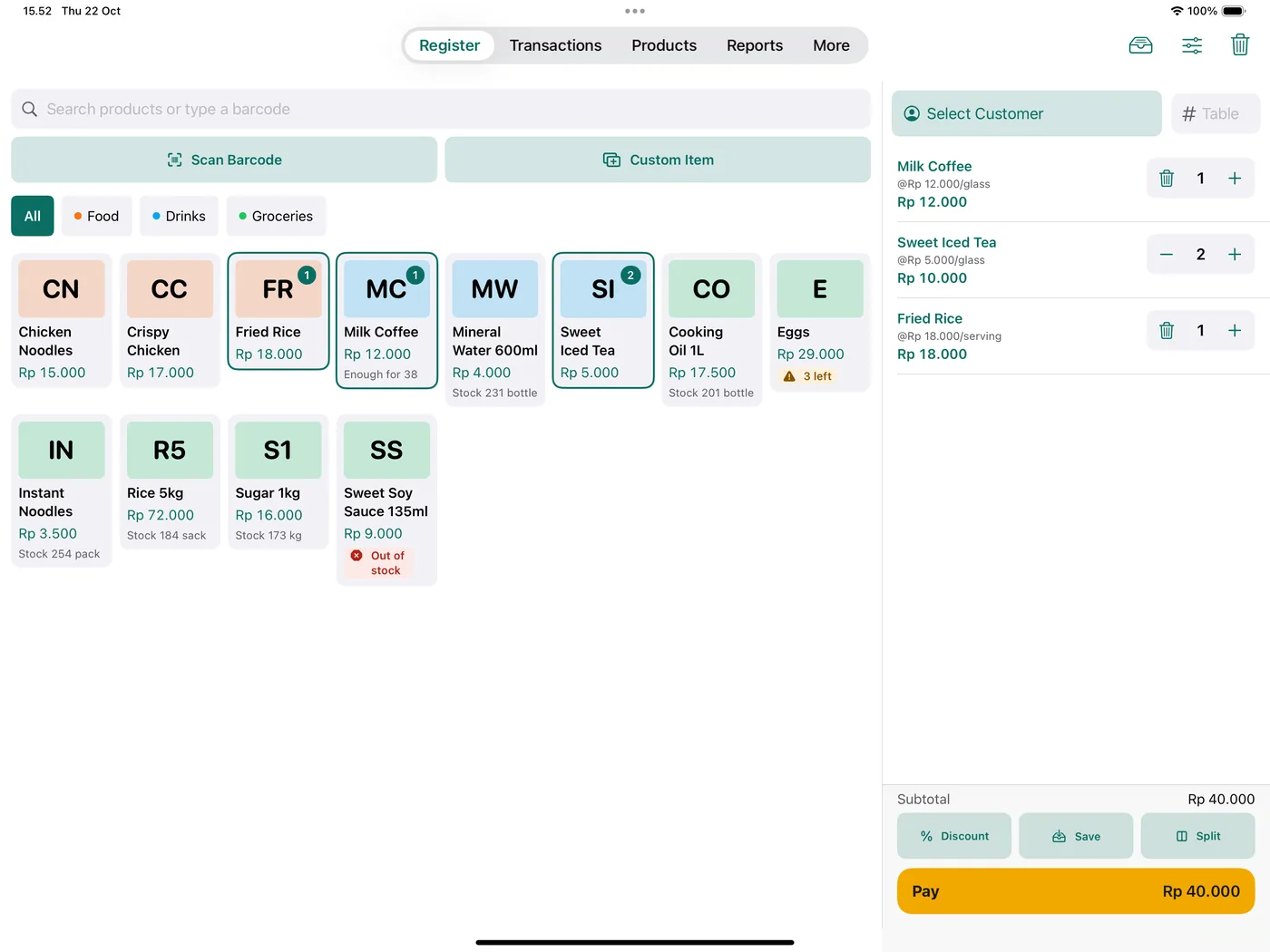
A coffee cart or small kiosk can get by with an iPhone. The app is the same; the layout simply adapts to the smaller screen. The reasons to choose an iPad for the counter are covered in more detail in the iPad POS app article.
Several cashiers can take turns on the same iPad. Each one signs in with their own PIN, so transactions are still recorded under the right name.
Open bills and split bills: per-table orders and separate checks
An open bill means the bill is opened first and paid later. It suits guests who stay a while and order more along the way.
Saving orders per table
In KasirPOS, put the order in the cart, fill in the table number, then tap Save under the cart. The cart clears and is ready for the next guest.
When that table orders more, open the saved order again, add the items, then save it again. When the guests ask for the bill, open their order and continue to payment.
Splitting the bill
A split bill is used when people at one table want to pay separately. Tap Split under the cart, choose the items to move to a new bill, then pay each bill separately.
Example: Table 4 orders 2 Milk Coffees at Rp 22.000 each, 1 Americano at Rp 20.000, and 1 Croissant at Rp 25.000. The total is Rp 89.000 before tax and service.
| Bill | Items | Amount |
|---|---|---|
| Guest A | 1 Milk Coffee, 1 Croissant | Rp 47.000 |
| Guest B | 1 Milk Coffee, 1 Americano | Rp 42.000 |
| Table total | 4 items | Rp 89.000 |
Split payments
Sometimes one guest pays two ways. For example, Guest A pays Rp 47.000: Rp 20.000 in cash and Rp 27.000 via QRIS. Choose the first method, enter the amount, then add a second method for the rest.
The list of payment methods is managed in More › Payment Method. Keep in mind that KasirPOS only records the payment method; the QRIS money still goes to your shop's own QRIS.
How to match your records with the money received at the end of the day is in the article on recording QRIS payments.
Café menus: sizes, notes, and toppings
A café menu is rarely as simple as one price per item. There are sizes, special requests, and paid extras like an extra shot.
Sizes as variants
Create each size as its own product, for example "Iced Milk Coffee Regular" and "Iced Milk Coffee Large", then fill in the same Variant Group: "Iced Milk Coffee". On the register screen, both appear as one menu item with a size choice.
Because each size has its own selling price and cost price, profit per size is still calculated in the reports.
Notes per item
Free requests, such as "less sugar" or "no ice", can simply be written as a note. Tap the item name in the cart, type the note, then save. The note appears under the item name, so the barista can read it from the screen.
Paid options and toppings
For more structured choices, use Options & Toppings. Create groups such as Size, Sugar Level, or Toppings in Products › Add › Options & Toppings, then attach the group in Edit Product.
Each option can have an extra price and cost price, for example Extra Shot adds Rp 5.000. A group can be required (the guest must pick one size) or multiple choice (several toppings allowed). When the menu item is tapped, the cashier picks the options, the extra charge is added, and the choices are printed on the receipt.
Tax, service charge, and receipts
Tax and service charge
Many cafés add tax and a service charge on top of menu prices. In KasirPOS, both percentages are set in More › Tax, Service & Transactions, including rounding of the total.
The tax rate that applies to your business can differ from region to region. Ask your local regional tax office before filling it in; do not guess.
One good habit: state on the menu that prices do not include tax and service. Guests are not surprised by the total, and the cashier does not have to explain it over and over.
Bluetooth receipt printers
Café receipt printers usually use 58 mm or 80 mm thermal paper. For iPhone and iPad, choose a BLE (Bluetooth Low Energy) printer that supports ESC/POS commands.
Printers with only classic Bluetooth cannot connect to an iPhone or iPad. This is an iOS limitation, not an app limitation.
Connect the printer from inside the app, not from the Bluetooth menu in the iPhone's Settings. Open More › Printer & Cash Drawer › Find Bluetooth Printers, choose the printer, then run Test Print. A guide to choosing a printer is in the article on Bluetooth thermal printers for iPhone.
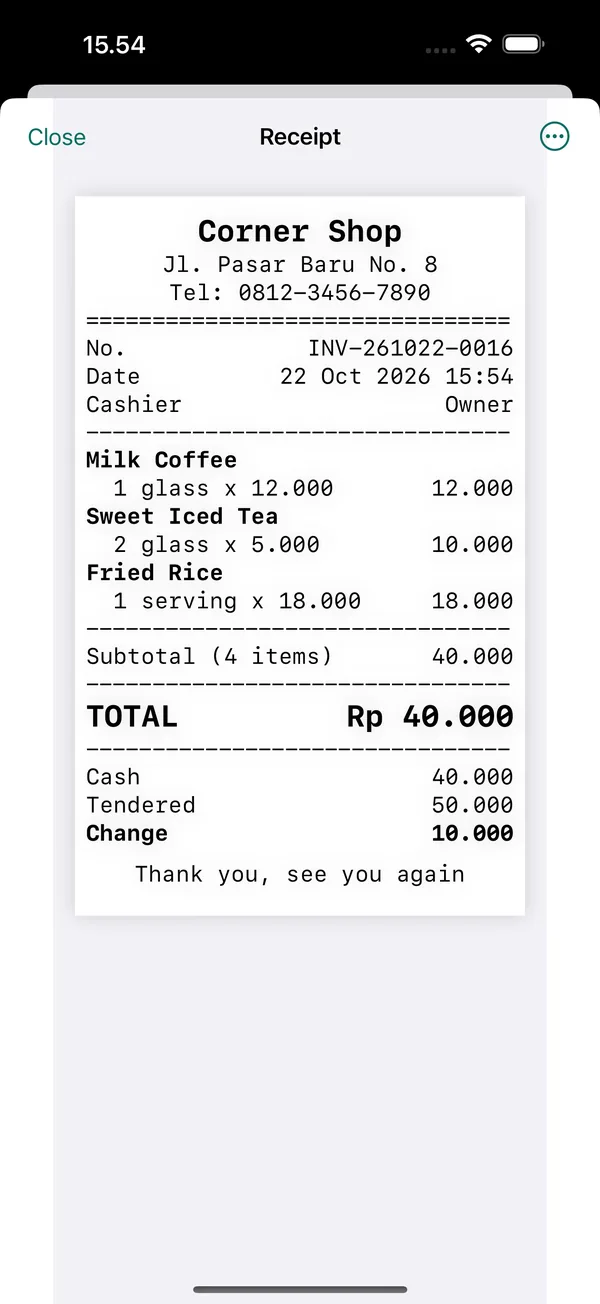
Set the logo, address, and footer in More › Receipt Layout. The footer can hold a thank-you message, the café's social media accounts, or the Wi-Fi password.
Digital receipts via WhatsApp
Guests who do not need paper can get a digital receipt. After payment, tap Share Receipt. From the Transactions tab, there is also Send to WhatsApp if the customer's number is saved.
The full steps are in the article on digital receipts via WhatsApp.
A cashier account for every staff member
A café with two or three shifts should not use one shared account. Create an account per staff member in More › Users, Cashiers & PIN › Add Cashier / Staff. Each cashier signs in with their own PIN, and their name is recorded on every transaction.
Set each cashier's permissions to match their job. For example, a barista may take payments but may not give discounts, cancel transactions, or see cost and profit. The owner can always see everything, including sales per cashier in Reports.
For shift changes, use More › Open / Close Register. The cashier enters the opening cash when opening, then counts the money in the drawer when closing, and the owner can see any difference.
Cashiers without the View reports permission count the money without seeing the expected amount (a blind count). The register closing report can be printed or shared with the owner.
Other ways to protect the cash drawer are covered in the article on how to prevent cashier theft.
Limitations you should know
No app suits every café. Before using KasirPOS, note the things it does not offer:
- No kitchen printer or kitchen display. Orders are not sent to the kitchen automatically. For a small café with the barista behind the bar, this is usually not a problem. If your kitchen is separate and orders are busy, consider a different workflow.
- Not connected to delivery apps. Orders from food delivery apps are recorded manually as regular transactions. To keep them separate in reports, add a payment method called "Ojol" (short for ojek online, Indonesia's ride-hailing and delivery apps), then look at sales by payment method.
- Does not process payments. QRIS, cards, and e-wallets still go through your own provider. The app only records them.
- Data is stored on the device. Make regular backups and keep a copy off the iPad, for example in iCloud Drive.
For coffee shops and small cafés with one counter, these limitations can usually be handled with tidy work habits. The easiest way to judge whether it fits is to try it yourself:
- Download KasirPOS on an iPad or iPhone, enter your café's name, and turn on sample products for practice.
- Try saving a table order, splitting a bill, and a split payment with the sample products.
- Delete the sample data in Products › Add › Delete Sample Data, then enter your real menu.
- Set up tax, service, and the receipt layout, then connect the printer and run Test Print.
- Create an account for each staff member with the right permissions.
If any step is confusing, open the register guide or tap More › Chat with Support on WhatsApp.
Frequently asked questions
Is there a free café POS app for iPad?
Yes. KasirPOS can be used for free on iPad and iPhone with iPadOS or iOS 17 and later. All of its features are free, with no ads, no subscription, and no in-app purchases. The features cafés need, such as saving orders per table, split bills, split payments, tax, and service charge, are included.
How do I split a bill in a POS app?
Put the whole table's order in the cart, then move a particular guest's items to a new bill. In KasirPOS for iPhone and iPad, tap Split under the cart, choose the items, then pay each bill separately. Each bill can use a different payment method, for example cash and QRIS.
Can a café POS app be used without internet?
KasirPOS can. Transactions, stock, and reports keep working without internet on iPhone and iPad because the data is stored on the device. Internet is needed when sending receipts or the catalog via WhatsApp. A Bluetooth thermal printer can also still print receipts without an internet connection.
Can a POS app print orders to the kitchen?
Not every POS app can. KasirPOS has no kitchen printer or kitchen display, so orders are not sent to the kitchen automatically. Receipts are printed on a Bluetooth thermal printer connected to the iPhone or iPad. In a small café, the barista can read orders and their notes directly from the screen at the bar.