KasirPOS
Recording QRIS and Cash Payments: How to Reconcile Your Daily Takings
How to record QRIS payments, cash, and transfers: log each payment method, total each method daily, match bank records, and spot fake transfer receipts.
Recording QRIS payments properly starts with one habit: every transaction is recorded together with its payment method, whether cash, QRIS (Indonesia's national QR code payment standard), bank transfer, or e-wallet. At the end of the day, total each method, then match it against the cash in the drawer, your QRIS history, and your bank statement. If the numbers agree, no money has gone missing or been recorded wrongly.
The steps are simple, but they often get skipped when the shop is busy. Below is the workflow, a sample daily summary, how to find discrepancies, and how to record it all on an iPhone or iPad.
Why QRIS and cash are hard to reconcile
It used to be that all of a warung's (small neighborhood shop's) money sat in the drawer. Now it's spread across several places: cash in the drawer, QRIS in your QRIS provider account or bank account, transfers in your bank account, and some in e-wallets. No single place shows the total.
As a result, small discrepancies often go unnoticed. The most common causes:
- The cashier picks the wrong method, for example the customer paid cash but it was recorded as QRIS.
- A split payment is recorded as a single method.
- A QRIS payment fails, but the customer has already left and the transaction is treated as paid.
- A customer shows a transfer receipt, but the money never arrives.
- Cash from the drawer is used to buy ice or gas without being recorded.
QRIS and bank notifications also often go to the owner's phone, not the cashier's. That's why reconciling has to be done deliberately at the end of the day rather than relying on memory.
Step 1: record the payment method on every transaction
Choose the payment method when the transaction happens, not by trying to remember it afterward. In a notebook, add a column for the method. In a POS app, choose the method on the payment screen.
Make a list of the methods you actually accept, for example Cash, QRIS, Bank Transfer, Debit Card, and E-wallet. If the shop has two bank accounts, create two separate methods, for example "Transfer – Shop Account" and "Transfer – Second Account", so each one is easy to match with its statement.
Ideally, all non-cash payments go to a QRIS account or bank account in the shop's name, not a personal account. Mixing personal and shop money throws off calculating your shop's profit.
Step 2: record split cash and QRIS payments correctly
Customers often pay part in cash and the rest by QRIS. For example, a Rp 85.000 purchase paid with Rp 50.000 in cash and Rp 35.000 by QRIS. Record it as two payments in one transaction: Cash Rp 50.000 and QRIS Rp 35.000.
If the whole amount is recorded as cash, at the end of the day the drawer will look Rp 35.000 short and your recorded QRIS will be Rp 35.000 below its history. The cashier may come under suspicion when it was only a recording mistake.
If the customer pays less and puts the rest on credit, record the shortfall under the customer's name. That's covered in the guide on how to track customer debt.
Step 3: make a daily payment summary and reconcile each method
After closing, total the sales for each payment method. Then match each line against its own source. A sample one-day summary:
| Method | Recorded at the register | Matched against |
|---|---|---|
| Cash | Rp 1.285.000 | Counting the cash in the drawer |
| QRIS | Rp 612.500 | Transaction history in your QRIS provider's app |
| Bank transfer | Rp 340.000 | Account statement in your banking app |
| E-wallet | Rp 96.000 | History in the shop's e-wallet app |
| Total | Rp 2.333.500 |
Reconciling cash
The cash in the drawer should equal the opening float plus cash sales, minus any money taken out of the drawer. If the opening float was Rp 200.000 and Rp 20.000 was used to buy ice, the drawer should hold Rp 200.000 + Rp 1.285.000 − Rp 20.000 = Rp 1.465.000.
Reconciling QRIS, transfers, and e-wallets
Open the transaction history in your QRIS provider's app, your banking app, and your e-wallet app, then add up the incoming transactions for the day. Compare them with the figures in the "Recorded at the register" column.
Example of finding a discrepancy
Say QRIS is recorded at Rp 612.500, but the QRIS history shows only Rp 577.500. The difference is Rp 35.000. Then the drawer count comes to Rp 1.500.000, Rp 35.000 more than it should be. That means a Rp 35.000 transaction was paid in cash but recorded as QRIS. The money is safe; it's the record that needs fixing.
If the drawer isn't over, the QRIS payment probably failed or hasn't arrived. Find the transaction by its time and amount, then ask the cashier who served it.
Tip: Reconcile against the QRIS transaction history, not against the funds settled into your bank account. If the provider charges a service fee, the amount that arrives can be smaller than the sales total, and settlement times vary. For the exact fees and settlement schedule, ask your QRIS provider or bank directly.
Watch out for fake transfer receipts
Screenshots of transfer receipts or a "payment successful" screen on the customer's phone are easy to fake or edit. Don't rely on them.
- Check on your own device. Make sure there's a notification or incoming entry in the shop's banking app or QRIS provider app before handing over the goods.
- Match the amount and time. A similar amount isn't necessarily the same transaction.
- Set up a process for cashiers. If notifications go to the owner's phone, decide how the cashier will check payments. Some QRIS providers offer notifications or a sound alert when a payment comes in; ask your provider.
- Keep checking when it's busy. Fraud often happens precisely when the queue is long and the cashier is rushed.
A broader look at the weak spots at the counter is in the article on how to prevent cashier fraud.
Recording QRIS payments in KasirPOS (iPhone/iPad)
One thing to be clear about first: KasirPOS doesn't process payments. It only records the payment method. For QRIS you still use the QRIS from your bank or provider, and the money goes straight into your shop's own QRIS account or bank account, not through KasirPOS.
How to record QRIS transactions in this POS app:
- Set up your payment methods. Open More › Payment Method, add the methods you accept, for example an e-wallet or a second bank account, and remove the ones you don't use.
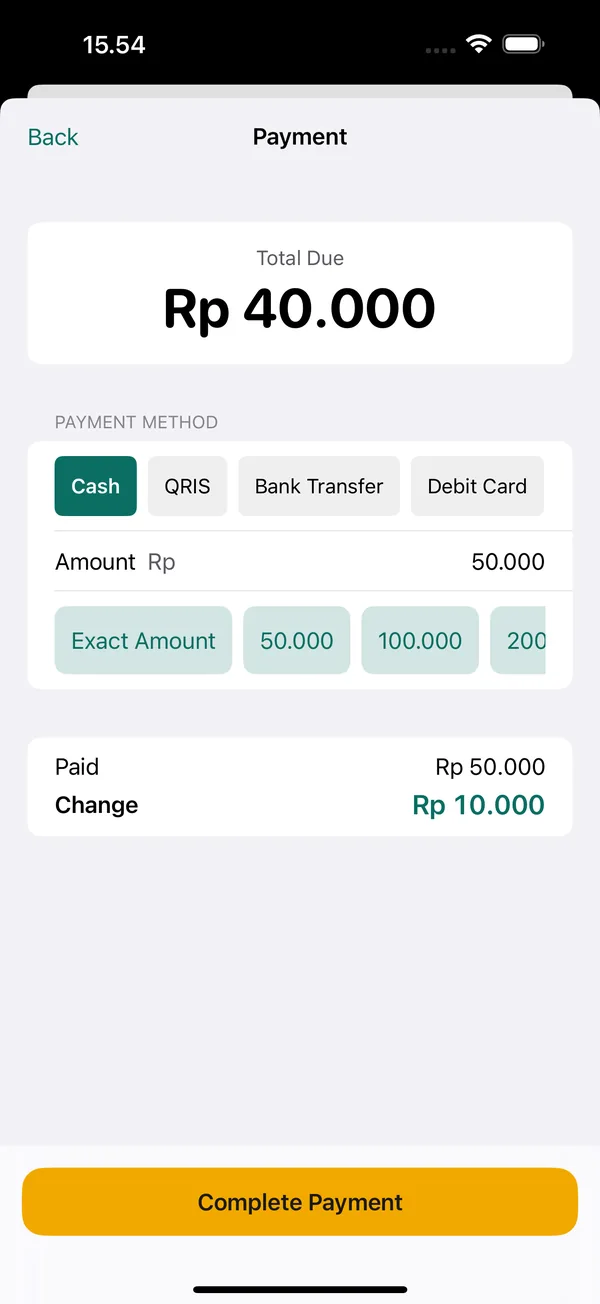
- Choose the method at payment. On the Payment screen, choose Cash, QRIS, Bank Transfer, or another method. For cash, there are Exact Amount and quick amount buttons, and change is calculated automatically.
- Split payments. Enter the amount for the first method, then tap Add another payment method (split) for the rest, for example part cash and part QRIS. If the customer pays less, select the customer, and the remainder is automatically recorded in the Debt Book under their name.
- Daily summary. Open the Reports tab, choose today as the period, then look at the breakdown by payment method. These are the figures you match against the drawer, the QRIS history, and the bank statement.
- Fix a wrong choice. Open the transaction in the Transactions tab and use Edit Transaction. The cashier's name is recorded on every transaction, so you know who to talk to.
For the cash drawer, use More › Open / Close Register. Enter the opening float when you open, count the cash in the drawer when you close, and KasirPOS shows the difference. Cashiers without the "View reports" permission count the cash without seeing the expected amount, so their count isn't influenced by the figure in the system. The register closing report can be printed or shared with the owner.
KasirPOS is free for iPhone and iPad, works without internet, and keeps your data on your device. A full rundown of its other features is in the guide to the iPhone POS app.
Frequently asked questions
How do I record QRIS transactions in a POS app?
Once the customer has paid with your shop's QRIS and the payment shows up in your QRIS provider's app, choose QRIS as the payment method on the POS app's payment screen. At the end of the day, open the report by payment method and match its total against your QRIS transaction history. In KasirPOS for iPhone and iPad, this breakdown is in the Reports tab.
Can KasirPOS accept QRIS payments?
No. KasirPOS doesn't process QRIS or card payments; it only records the payment method. You still use QRIS from your own bank or provider, and the money goes straight into the shop's bank account or QRIS account. KasirPOS helps you total how much of your sales were paid by QRIS so they're easy to reconcile.
How do I reconcile QRIS money with my sales records?
Add up the sales recorded with the QRIS method for the day, then compare them with the incoming transactions in your QRIS provider's app. If there's a difference, find the transaction by its time and amount. Often the difference comes from the cashier choosing the wrong method, and the money turns out to be in the drawer.
How do I record a split payment of cash and QRIS?
Record it as two payments in one transaction. For example, a Rp 85.000 purchase paid with Rp 50.000 in cash and Rp 35.000 by QRIS. That way, your cash total matches the drawer and your QRIS total matches the QRIS history. POS apps like KasirPOS on iPhone support split payments within a single transaction.
Why is the QRIS money that reaches my bank account less than my sales?
Usually because of a service fee from the QRIS provider, or because some funds haven't been settled yet. Fees and settlement schedules differ between providers, so ask your QRIS provider or bank directly. To reconcile your sales, use the QRIS transaction history, not the amount that has been settled.