KasirPOS
Cash Register or a POS App on Your Phone? An Honest Comparison for Small Shops
Cash register or a POS app on your iPhone? Compare features, upfront cost, upkeep, data safety, and when an electronic cash register still makes sense.
A cash register for a warung (a small neighborhood shop) is good at adding up a purchase, printing a receipt, and keeping cash in its drawer. A POS app on an iPhone or iPad can do the same things, and it also tracks stock, works out profit, records customer debt, and sends receipts over WhatsApp. For most small shops the app does more, but a cash register still makes sense in some situations.
The comparison below is written for owners of warungs and toko kelontong (small grocery shops) who are weighing it up: buy a cash register, or use the phone they already have.
Electronic cash register vs POS app: what is the difference
An electronic cash register is a dedicated machine. It is usually a single unit with number keys, a small display, a receipt printer, and a cash drawer. Item prices are stored under codes or keys, and the cashier presses them when a customer pays.
A POS app is a program on a phone or tablet. Your item list appears on the touchscreen, with names and photos. A receipt printer and cash drawer are optional add-ons you can use or skip.
So the real question is not just machine or app. What matters more is which records you need to run your shop every day.
Cash register vs POS app on your phone: side by side
This table compares a typical electronic cash register with a POS app on an iPhone or iPad. Cash register features vary by model, so treat the second column as a general picture.
| Aspect | Electronic cash register | POS app on iPhone/iPad |
|---|---|---|
| Totals and receipts | Yes, paper receipts | Yes, paper receipts via a Bluetooth printer, or digital receipts via WhatsApp and PDF |
| Stock | Limited or none, depending on the model | Stock goes down automatically with every sale, with a history and low-stock alerts |
| Profit | Usually total sales only | Gross and net profit, if you enter cost prices |
| Customer debt | Still written in a notebook | A debt book per customer, including installments |
| Adding or changing prices | Through keys and codes on the machine | Typed on screen, or imported from Excel |
| Reports | Usually a simple daily summary | Reports by period, best sellers, Excel export |
| Upfront cost | Buying the machine | Can use a phone or tablet you already own |
| Upkeep | Receipt paper, repairs if it breaks | Receipt paper if you print, battery, data backups |
| Moving it | Heavy and needs a power outlet | Easy to carry, runs on battery |
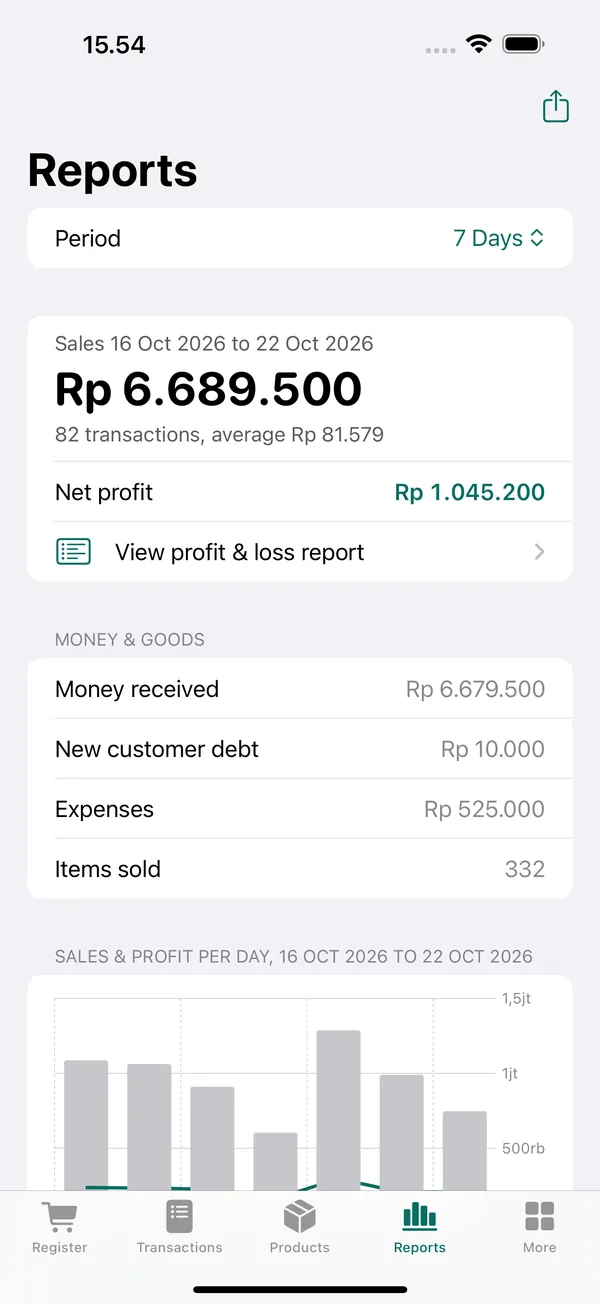
For a shop that often gives kasbon (store credit, a running customer tab) or carries hundreds of items, the biggest differences are in the stock, profit, and debt rows. With an ordinary cash register, those three records are usually still kept by hand.
Upfront cost and upkeep
An electronic cash register is bought once as a single package. A cheap cash register for a small shop usually just adds up and prints receipts, so you still need a stock book and a debt book. More complete models usually cost more too.
A POS app can start with a much smaller upfront cost if you already own an iPhone or iPad. Some apps charge a monthly fee, others are free. You can buy a receipt printer and cash drawer later, when you actually need them.
Receipt paper costs about the same either way. The difference is the risk of breakdowns. A broken cash register usually needs a technician, while a broken phone can be replaced with another device, as long as your data has a copy.
There is one hidden cost with an app. If you use your personal phone as the register, it stays on the shop counter all day. If that bothers you, consider an old iPhone or an iPad used only for the shop.
Data safety and portability
On a simple cash register, sales records usually live only in the machine and on the receipt copies. If the machine breaks or the receipt roll is lost, those records go with it.
With a POS app on iPhone, the risk is different. The app can be locked with Face ID or Touch ID, and each cashier has their own PIN. But if the phone is lost and there is no copy anywhere else, the data is gone too.
That is why you should back up your POS app data regularly. KasirPOS makes an automatic backup every day, and you can make a manual backup file to keep in iCloud Drive or send to yourself.
KasirPOS stores data on the device, not on the developer's servers, so the register keeps working when the signal drops. The offline POS app article explains how.
On portability, the app clearly wins. You can take an iPhone to a bazaar or to the storeroom to check stock. A cash register usually stays on one counter and needs a power outlet.
Which is easier for staff to learn
A cash register has physical keys that an experienced cashier can press quickly. The hard part is at the start: entering or changing item prices often has to be done through key codes and the manual.
A POS app feels more familiar to anyone used to a phone. Items are found by name, picked by photo, or scanned by barcode with the camera. Staff who rarely use a phone may need a few days to get used to it.
For practice, KasirPOS offers sample products the first time you open it. Staff can try sales with the sample products first. When they are done practicing, delete them in Products › Add › Delete Sample Data.
A practical setup: app, Bluetooth printer, and cash drawer
You do not have to pick one or the other outright. A POS app, printer, and drawer together feel like a cash register, with far more complete records.
What you need
- An iPhone or iPad running iOS or iPadOS 17 or later. An iPad suits a fixed checkout counter; see the iPad POS app article.
- A BLE (Bluetooth Low Energy) thermal printer that supports ESC/POS commands, with 58 or 80 mm paper. Printers that only have classic Bluetooth cannot connect to an iPhone or iPad. How to choose one is covered in the Bluetooth thermal printer for iPhone article.
- A cash drawer connected to the receipt printer. The drawer is opened through the printer, not directly from the phone.
- A barcode scanner (optional). The iPhone camera can already scan, but a Bluetooth or USB scanner works too.
How to set it up in KasirPOS
- Download KasirPOS, enter your shop name, then tap Save & Open Register.
- Add items one at a time, or all at once with Products › Add › Bulk Import. Enter cost prices so profit can be calculated.
- Connect the printer in More › Printer & Cash Drawer › Find Bluetooth Printers, choose your printer, then run Test Print. Connect from the app, not from the Bluetooth menu in iPhone Settings.
- Try opening the drawer with More › Open Cash Drawer.
- Ring up your first sale in the Register tab, then check the result in the Reports tab.
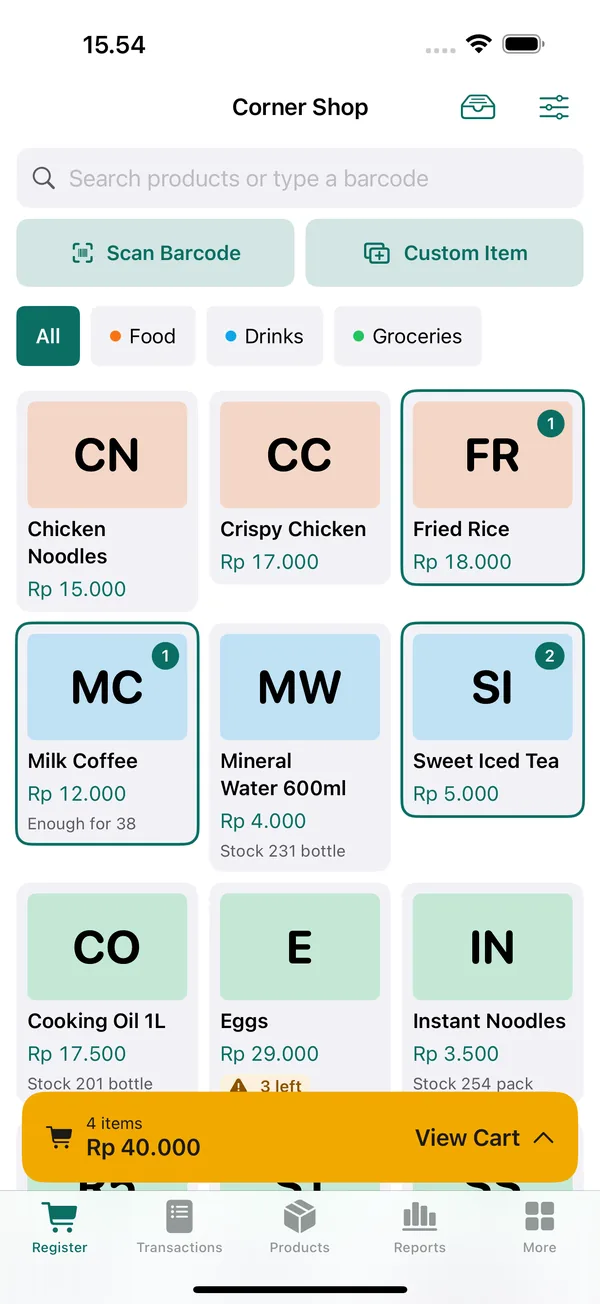
Every KasirPOS feature is free, with no ads, no subscription, and no account sign-up. If your printer will not connect, see the printer guide. For a full overview of features and how to choose, read the iPhone POS app guide.
When a traditional cash register still makes sense
A POS app is not always the right choice. An electronic cash register still makes sense if:
- You only need to add up and print receipts, and you are already comfortable tracking stock and debt another way.
- Your shop uses Android phones. KasirPOS is only available for iPhone and iPad; there is no Android version.
- Many people take turns at the counter and you feel safer with a device that cannot easily walk out the door.
- Your cashier has used a cash register for years and is not ready to switch.
- Your shop is hot, dusty, or prone to splashes, and you do not yet have a stand or cover for the phone.
If any of these fits your situation, buying a cash register is not a wrong decision. You can still move to a POS app at any time, once you need more records.
Frequently asked questions
Is a cash register or a POS app better for a small shop?
For a shop that needs records of stock, profit, and customer debt, a POS app does more because all of it is recorded from every sale. A cash register suits you if you only need to add up and print receipts. If you already have an iPhone or iPad, you can try a POS app first before buying any hardware.
Can a POS app on a phone print receipts?
Yes, with a Bluetooth thermal printer. For iPhone and iPad, the printer must support BLE (Bluetooth Low Energy) and ESC/POS commands. Printers that only have classic Bluetooth cannot connect to an iPhone. Besides paper receipts, a POS app can also send digital receipts via WhatsApp or as a PDF.
Can I use a cash drawer with a POS app on iPhone?
Yes, if the drawer is connected to the receipt printer. The drawer opens through the printer, not directly from the iPhone. In KasirPOS, you open the drawer with More › Open Cash Drawer once the printer is connected. Before buying, make sure your printer and drawer can actually be connected to each other.
How much does it cost to start using a POS app on iPhone?
KasirPOS is free: no ads, no subscription, and no in-app purchases. If you already have an iPhone or iPad with iOS or iPadOS 17 or later, you can start using it right away. A receipt printer, drawer, and barcode scanner are optional and can be bought later.