KasirPOS
How to Do a Stock Take in a Small Grocery Shop, with a Sample Form
How to do a stock take in a small grocery shop: when to count, how to prepare, step-by-step counting, a sample stock take form, and how to handle discrepancies.
A practical way to do a stock take in a small shop: pick a quiet hour, physically count every item on the shelves and in the storeroom, compare the count with the stock in your records or app, then write down each discrepancy and its reason. Do it regularly, for example once a month, or rotate through the shelves so the shop never has to close for a whole day.
Below you'll find a sample stock take form you can copy, how to read the discrepancies, and how to do the count with an iPhone or iPad in hand in front of the shelf.
What a stock take is and why it matters
A stock take (in Indonesia called stok opname) means counting the physical quantity of your goods and matching it against the quantity in your records. Some people call it a stock count or inventory count. It's the same thing.
The goal is simple: know what you really have. Accurate stock numbers let you reorder on time, avoid piling up slow-moving goods, and calculate your profit honestly.
A stock take is also how you find leaks. Damaged goods that were never recorded, deliveries someone forgot to enter, or missing items all show up as discrepancies.
When to do a stock take
There's no required schedule. Pick a routine you can actually keep up, not the one that looks best on paper.
- A full stock take once a month. Everything gets counted, usually at the end of the month. This suits shops that don't carry a huge number of items.
- Rotating counts by category or shelf. Each week, count just one or two shelves, for example the drinks shelf on Monday and the staples shelf on Thursday. Every shelf still gets counted within a month, but the work stays light.
- More often for high-risk items. High-value or fast-selling goods, such as rice, cooking oil, and milk, are worth counting every week.
- When something changes. Before you start using a POS app, when the employee in charge of the storeroom changes, or after you find a large discrepancy.
Preparing before you count
Good preparation makes the stock take faster and the results more trustworthy.
- Pick a quiet hour. Morning before opening or evening after closing. If you have to count while open, start with the shelves that sell slowly.
- Bring your records up to date first. Make sure every delivery and every sale that day has been recorded. Goods that just arrived but haven't been entered will immediately show up as a discrepancy.
- Prepare a product list. Sort it by shelf location so you don't walk back and forth.
- One person counts, one person records. The counter calls out each number clearly, and the recorder repeats it back. This cuts down on mishearing and miswriting.
- Tidy the shelves. Put identical items together in one place and set aside damaged or expired goods.
- Agree on units. Count in the smallest unit used in your records, for example pcs (pieces). Sealed cartons are multiplied by their contents: 3 cartons of 40 plus 17 loose pcs makes 137 pcs.
How to do a stock take, step by step
- Start with one shelf. Count from left to right, top to bottom. Mark the shelves you've finished, for example with a sticky note.
- Include backup stock. Goods in the storeroom, under the counter, or in the front display case all get added to the same product.
- Record the physical count without looking at the recorded number. The counter should ideally not know the recorded figure, so they aren't tempted to "make it match."
- Compare and calculate the discrepancy. The formula: Discrepancy = Physical count − Recorded stock. A minus means goods are missing, a plus means there's more than recorded.
- Recount anything with a large discrepancy. Ask someone else to count that product again before treating it as final.
- Save the results and update your stock. The stock take figures become the new stock, and the reason for each discrepancy is recorded.
Sample stock take form for a small grocery shop
A stock take form only needs five columns. The example below uses made-up numbers for a toko kelontong (a small neighborhood grocery shop).
| Product | Stock in the app | Physical count | Discrepancy | Notes |
|---|---|---|---|---|
| Rice 5 kg | 24 sacks | 23 sacks | −1 | 1 sack torn, damaged |
| Cooking Oil 1 L | 36 bottles | 36 bottles | 0 | Matches |
| Sugar 1 kg | 40 pcs | 42 pcs | +2 | Delivery not yet recorded |
| Instant Fried Noodles | 120 pcs | 114 pcs | −6 | Unknown, check history |
| Sweetened Condensed Milk | 30 cans | 28 cans | −2 | Expired, pulled from shelf |
Minus discrepancies are more useful when you put them in rupiah. Say the cost price is Rp 68.000 per sack of rice, Rp 2.800 per pack of instant noodles, and Rp 11.000 per can of condensed milk.
Value of the missing goods: Rp 68.000 + (6 × Rp 2.800) + (2 × Rp 11.000) = Rp 68.000 + Rp 16.800 + Rp 22.000 = Rp 106.800. The rupiah figure helps you decide which discrepancies to investigate first.
Following up on stock take discrepancies
A stock take isn't finished if you only write the discrepancies down. Every discrepancy needs a reason, because the reason tells you what to fix.
- Damaged. Torn, dented, or wet packaging. Record it as a stock reduction and check how the item is stored.
- Expired. Pull it from the shelf and record it. If it keeps happening with the same product, buy less of it.
- Missing. A minus discrepancy with no explanation. Record it and watch it at the next stock take. Don't accuse anyone right away.
- Recording error. A delivery wasn't entered, cartons and pieces got mixed up, or an item was sold as a manual entry. This is a discrepancy "on paper"; the goods aren't actually gone.
Discrepancies with no clear cause can be traced through the stock history. The full guide is in the article on causes of stock discrepancies and how to fix them.
If discrepancies often come from unit mix-ups, first sort out how you sell by the carton and by the piece. That's explained in the guide to wholesale and retail pricing.
Tip: Keep the results of every monthly stock take. A small discrepancy that keeps showing up on the same product means more than one big discrepancy that happens once.
How to do a stock take in KasirPOS (iPhone/iPad)
KasirPOS is a free iPhone POS app for iPhone and iPad that works without internet. You can do the stock take right in front of the shelf, with no paper form.
Counting many products at once
Open More › Stock, Purchases & Stock Count › Stock Count. Enter the physical count for the products you've counted, then save. The results are recorded in the stock count history.
Counting a single product
In the Products tab, open the product and choose Adjust / Count Stock. This suits rotating counts, or when you notice one item whose number looks off. This screen has a notes field for writing the reason for the discrepancy, for example "2 cans expired."
Checking stock history and reports
Every stock change is recorded in the history: sales, purchases, stock counts, and returns. View it per product through Stock History on the product page, or for all products through More › Stock, Purchases & Stock Count › Stock History for All Products.
For a summary by period, open the Stock Report in the same menu. It shows Opening, In, Out, and Closing for each product.
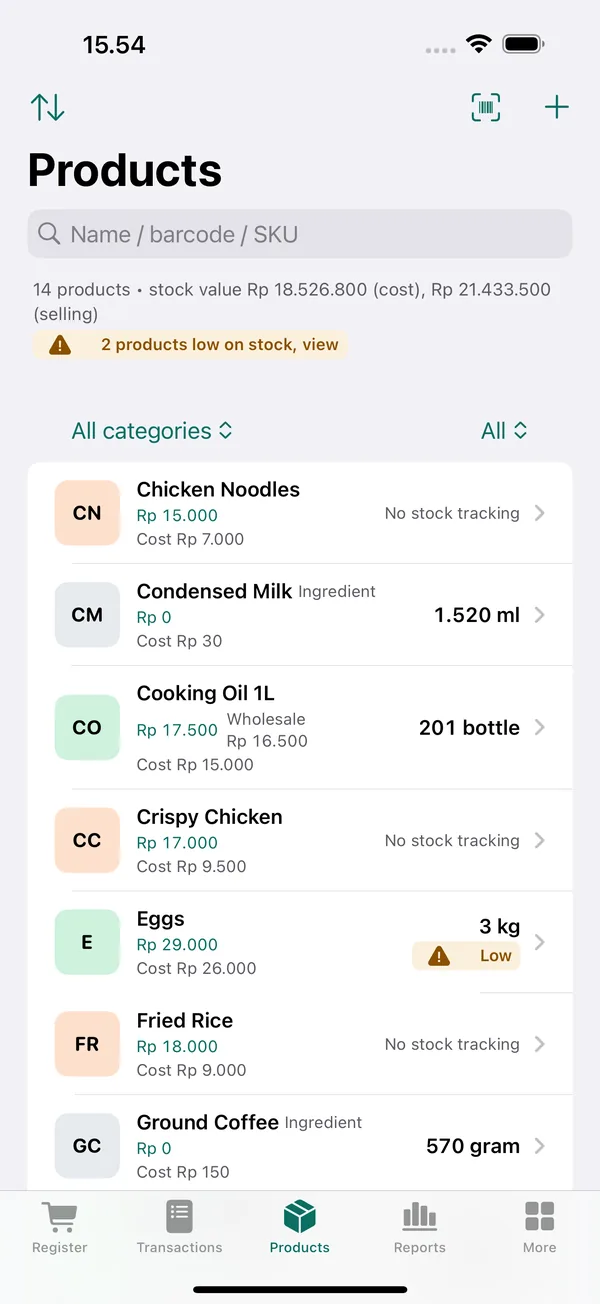
Counting with an iPhone or iPad in hand
Take the iPhone to the shelf. The recorder holds the iPhone and types the numbers while the counter focuses on counting without looking at the screen. In shops that use an iPad at the counter, the iPad can come to the shelf too; its larger screen makes the product list easier to read.
Don't have your product list in the app yet? Add it all at once with import products from Excel, then use your first stock take as the opening stock. A short guide to the product menu is also on the support page.
Frequently asked questions
What's the difference between a stock take and a regular stock check?
A regular stock check just looks at what's left, for example to know when to restock. A stock take carefully counts the physical goods, compares them with the records, notes the discrepancies, and updates the stock figures. The result becomes the trusted stock figure for reports and the next purchases, whether you keep records in a notebook or in a POS app on an iPhone or iPad.
How often should you do a stock take?
For a small grocery shop, a full stock take once a month is a sensible starting point. If you carry a lot of items, use rotating counts: each week count one or two shelves so every shelf is counted within a month. High-value or fast-selling goods are best counted more often, for example every week.
How do I do a stock take on an iPhone without a computer?
In KasirPOS, open More, then Stock, Purchases & Stock Count, then Stock Count. Enter the physical count for each product you've counted, then save. For a single product, open it in the Products tab and choose Adjust / Count Stock. Everything is done on the iPhone or iPad, with no computer and no internet.
What should I do if the stock take doesn't match the records?
First recount the products with large discrepancies, ideally with a different person. If they still differ, find the reason: damaged, expired, a delivery not recorded, a unit mix-up, or missing. Record that reason with the stock take results. Discrepancies with no clear cause can be traced through that product's stock history.
Does the shop have to close during a stock take?
Not necessarily. Do a full stock take before opening or after closing, or use rotating counts by shelf when the shop is quiet. What matters is that the shelf being counted doesn't get mixed up with unrecorded sales. If an item from that shelf is sold in the middle of the count, note it and account for it before saving the results.